
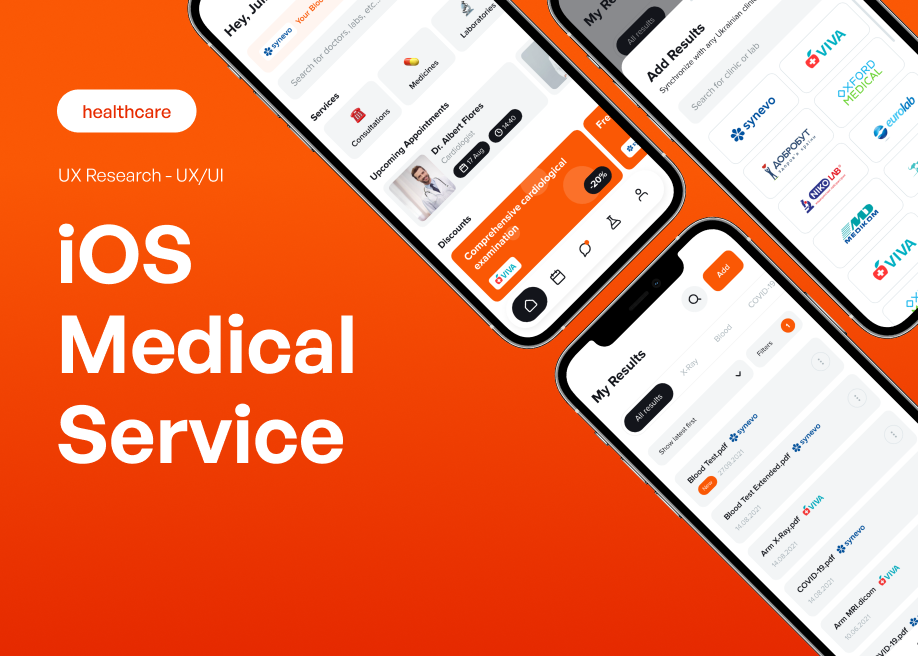
There’s a quiet revolution happening in the corners of hospitals, on the tailgates of service trucks, and in the cluttered back offices of clinics. It’s not flashy. It’s not consumer-facing. It’s the shift from paper clipboards and sticky notes to custom iOS apps built for one thing: getting the job done right. Honestly, if you’ve ever watched a nurse juggle a tablet while a patient is talking, or a field tech squinting at a cracked phone screen in the rain, you know the stakes. Building for these workflows isn’t just about coding—it’s about respect for the user’s time, their environment, and their sanity.
Why Off-the-Shelf Apps Just Don’t Cut It
Sure, you can download a generic task manager or a form-filling app. But here’s the deal: specialized workflows are messy. They’re full of edge cases, regulatory constraints, and split-second decisions. A generic app is like using a butter knife to perform surgery—technically it’s a knife, but you’re gonna have a bad time.
In healthcare, you’re dealing with HIPAA compliance, patient vitals, and the absolute terror of a mis-tapped button. In field service, you’re dealing with offline connectivity, GPS drift, and the need to photograph a broken valve while holding a flashlight in your teeth. These aren’t scenarios you can solve with a template. You need an app that feels like it was grown for the job, not bolted together.
The Core Architecture: Think “Offline-First”
Let’s start with the elephant in the room—or rather, the dead zone in the parking garage. Field service techs spend half their lives in basements, tunnels, and rural stretches where “5G” is a myth. Healthcare workers? They’re in elevators, stairwells, and MRI rooms that block signals like a Faraday cage.
So, your iOS app needs to be offline-first. That means the app stores data locally on the device using something like Core Data or SQLite, syncs when a connection is available, and never—ever—shows a spinning “No Internet” wheel. The sync engine should be smart about conflict resolution, too. If a nurse updates a patient’s allergy list while the doctor is adjusting the dosage, you need a merge strategy that doesn’t silently drop either change. That’s not a nice-to-have; it’s a safety issue.
One trick I’ve seen work well: use a “sync queue” that logs every action as a discrete event. Then, when connectivity returns, the app replays those events in order. It’s like writing a letter to yourself, then mailing it later. Simple, but effective.
Designing for Gloved Hands and Bright Sunlight
Here’s where most consumer-grade apps fall apart. The average iPhone user has clean, dry fingers and sits in a well-lit room. Your user? They’re wearing nitrile gloves smeared with hand sanitizer, or they’re standing in direct sunlight trying to read a screen that’s reflecting the entire sky.
So, you need to crank up the contrast. Use large, bold fonts. Avoid thin gray text on white backgrounds—it’s a readability killer. And for the love of all things holy, make buttons big. A 44×44 pixel tap target is the minimum, but for field service, I’d argue for 60×60 or larger. When someone’s wearing work gloves, precision tapping is a fantasy.
Also, consider haptic feedback. A subtle vibration when a form is submitted or a photo is captured gives the user confidence without requiring them to look away from the task. It’s the digital equivalent of a firm handshake—reassuring, professional, and quick.
Voice Input: The Unsung Hero
Let’s talk about something that’s often overlooked: voice. In healthcare, doctors don’t want to type notes—they want to dictate. In field service, techs need to log a finding while both hands are busy holding a wrench. iOS has robust speech recognition built in, and you should use it. Not as a gimmick, but as a primary input method.
You can integrate with Siri shortcuts for common actions like “log the inspection” or “mark as complete.” And for dictation, use the native AVSpeechRecognizer—it’s surprisingly accurate, even with background noise. Just make sure to have a clear “review before submit” step. Voice recognition isn’t perfect, and a misheard medication name could be catastrophic.
Table Views, But Make Them Smart
Lists are the backbone of most workflow apps. But a flat, alphabetical list is useless when you have 200 patients or 500 work orders. You need smart filtering, sorting, and search. And I mean smart—not just a search bar that matches exact strings.
Implement fuzzy search. If a tech types “valv 3,” the app should suggest “Valve 3B – Main Line.” Use predictive sorting based on urgency or proximity. For healthcare, prioritize by critical condition. For field service, sort by travel time or SLA deadline. The list should feel like it’s reading the user’s mind, not just dumping data.
Camera Integration: More Than Just a Photo
Both industries rely heavily on visual documentation. A field tech needs to snap a photo of a corroded pipe. A nurse needs to document a wound’s healing progress. But a raw photo isn’t enough—you need metadata.
Use the camera to capture GPS coordinates, timestamps, and even barcode or QR codes. For healthcare, you might want to overlay a ruler or a color reference card in the frame for scale. For field service, let the user annotate the photo with arrows or text directly on the image. iOS has Vision framework for OCR (optical character recognition), which can pull serial numbers or label text automatically. That’s a game-changer—no more typing out a 14-digit serial number by hand.
Security: Non-Negotiable, But Not Paralyzing
Okay, let’s address the scary part. Healthcare apps must comply with HIPAA. Field service apps might handle client data, contracts, or proprietary equipment info. You can’t just slap on a password and call it secure.
Use Biometric authentication (Face ID or Touch ID) for every session. Encrypt all data at rest using the device’s built-in Keychain and Data Protection APIs. And for network calls, use TLS with certificate pinning—don’t just trust the default system trust store. That said, don’t let security grind the workflow to a halt. A nurse shouldn’t have to re-authenticate every time she switches from one patient to another. Use a session timeout that’s long enough for a busy shift but short enough to protect data if the device is lost.
The Role of Apple’s Frameworks: SwiftUI vs. UIKit
Now, a quick technical digression. Should you build with SwiftUI or UIKit? Honestly, for new apps, SwiftUI is the way to go. It’s more declarative, which means less code for complex layouts. But—and this is a big but—SwiftUI’s maturity is still catching up. If you need highly custom, low-level interactions (like a custom drawing canvas for annotations), you might still drop down to UIKit for specific views. That’s fine. You can mix them using UIViewRepresentable. Don’t be a purist; be pragmatic.
Also, consider using WidgetKit for a home screen widget. A field tech can glance at the next job without opening the app. A doctor can see the next patient’s critical alerts. It’s a small touch, but it builds loyalty. And loyalty matters when your app is competing for screen space with Angry Birds.
Testing in the Wild, Not Just in the Lab
You can’t test a field service app in a cozy office. You need to test it in a dusty warehouse with flickering lights. You can’t test a healthcare app on a simulator—you need to test it with actual clinicians who are stressed and moving fast. This is where “beta testing” gets real. Recruit a small group of power users and give them a TestFlight build. Watch them use it. Don’t just read their feedback—sit next to them. You’ll see the exact moment they get frustrated, and that’s worth more than a thousand bug reports.
One thing I’ve seen fail repeatedly: apps that assume a stable internet connection. So, test with airplane mode on. Test with a weak signal that drops mid-sync. Test with a device that’s almost out of storage. These are the real-world conditions, and your app needs to survive them.
Training and Onboarding: The Silent Feature
You can build the most intuitive app ever, but if the user doesn’t trust it, they’ll revert to paper. So, plan for onboarding that’s embedded in the app. Not a 20-page PDF manual—nobody reads that. Use short, interactive tutorials that mimic the actual workflow. For example, a “practice mode” where a field tech can fake a work order and go through the steps without consequences. That builds muscle memory.
Also, build in a feedback loop. Let users submit “suggestions” directly from the app. You’d be amazed at the insights you get from someone who’s used the app 50 times in a week. They’ll tell you which button is in the wrong place, which form field is redundant, and which animation is just annoying.
Performance: It’s About Respect
Slow apps are disrespectful. When a nurse is charting vitals, every second counts. When a tech is on a customer’s roof, they don’t want to wait for a spinner. So, optimize your app’s launch time—aim for under 2 seconds on a mid-range iPhone. Lazy-load images. Pre-fetch data you know you’ll need. And use UICollectionView with prefetching for large lists.
Here’s a quick rule of thumb: if an action takes longer than 300 milliseconds, show some visual feedback. If it takes longer than 1 second, show a progress indicator or a skeleton screen. But never, ever block the UI with a modal “Loading…” dialog. It feels like a wall.
The Future: AI and Predictive Workflows
We’re starting to see apps that don’t just record data—they predict the next step. Imagine a field service app that recognizes a common error code and automatically suggests a fix, pulling up the relevant manual page without being asked. Or a healthcare app that flags a potential drug interaction based on a new prescription. That’s where we’re headed. And with Apple’s Core ML



More Stories
Securing iOS Apps Against Emerging Social Engineering and Phishing Threats
Creating localized iOS experiences for specific global regions and cultures
Optimizing iOS App Performance for Emerging Foldable iPhone Form Factors