
Let’s be honest: we often think of our iPhones as digital fortresses. Apple’s walled garden, regular updates, and that sleek, secure feel give us a ton of confidence. And for good reason—iOS is a remarkably secure platform. But here’s the deal: no software is perfect. Zero-day exploits, sophisticated phishing, and even physical attacks mean the threats are real and evolving.
Think of iOS security not as an impenetrable wall, but as a series of layered doors. Your job is to keep as many of them locked as possible. This article breaks down the most common iOS security vulnerabilities you might face and, more importantly, gives you actionable steps to slam those doors shut.
Common iOS Security Vulnerabilities You Should Know About
First, let’s demystify what we’re up against. These aren’t just theoretical risks; they’re the tools attackers actually use.
1. Zero-Day Exploits and Unpatched Software
This is the big one. A “zero-day” is a flaw Apple doesn’t know about yet, giving them zero days to fix it before it’s potentially exploited. Once discovered, Apple rushes out a patch. But the vulnerability becomes critical for users who… well, who just don’t update. An unpatched device is like leaving your front door unlocked in a known bad neighborhood.
2. Phishing and Social Engineering Attacks
iOS can’t protect you from you—or rather, from a moment of trickery. Phishing attacks have gotten scarily good. A text that looks exactly like it’s from Apple, a fake login page for your iCloud, or a urgent “security alert” email. These attacks prey on haste and fear, bypassing technical safeguards by targeting human psychology.
3. Malicious Apps (Slipping Through the Gates)
The App Store review process is stringent, but occasionally, a malicious app slips through. More common, honestly, are apps that overreach—requesting far more data permissions than they need. That simple flashlight app wanting access to your contacts and location? That’s a data-harvesting vulnerability waiting to happen.
4. Network-Based Attacks (Wi-Fi & Bluetooth)
Public Wi-Fi at the airport or coffee shop is a minefield. Hackers can set up rogue hotspots with familiar names (“Starbucks_WiFi_Free”) or intercept data on legitimate ones. Similarly, leaving Bluetooth always on and discoverable can be an open invitation for “Bluejacking” or other intrusion attempts.
5. Physical Device Access
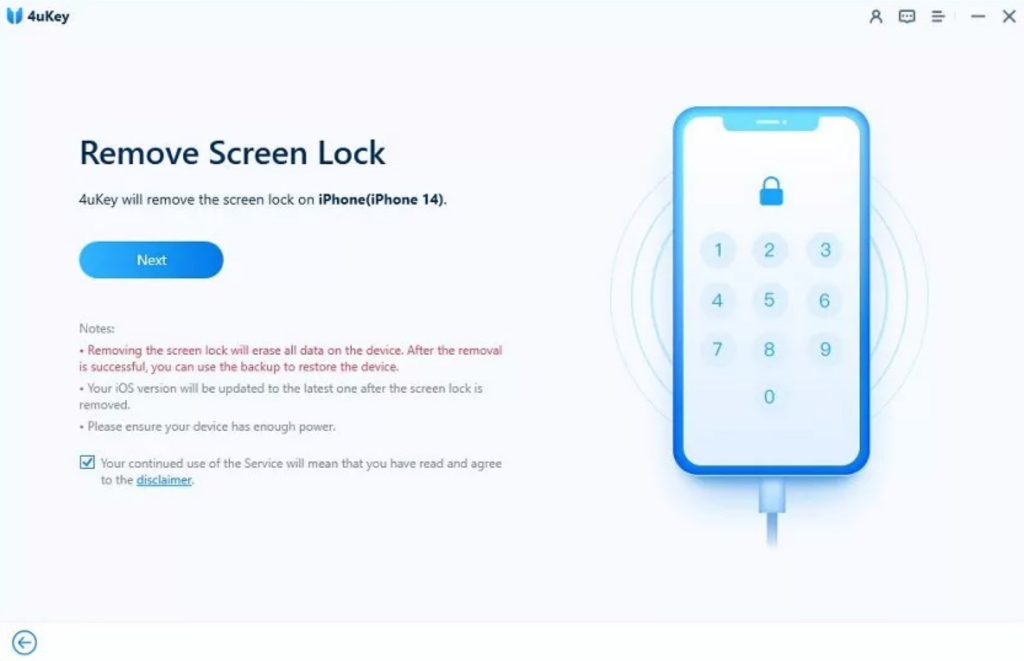
We forget about this one. If someone gets their hands on your unlocked phone, even for a minute, the game’s over. They can install spyware, access your photos and messages, or change critical security settings. It’s the most straightforward, low-tech vulnerability of all.
Your Action Plan: Mitigating iOS Security Risks
Okay, enough about the problems. Let’s get to the solutions. This is your actionable checklist.
1. Make Updates Non-Negotiable (Seriously)
This is the single most effective thing you can do. Enable automatic updates: Go to Settings > General > Software Update > Automatic Updates, and turn on all the options. Those updates contain critical security patches. Installing them isn’t a suggestion; it’s essential maintenance.
2. Fortify Your Accounts and Passwords
Start with the core: your Apple ID. Enable Two-Factor Authentication (2FA). It’s a must. This adds a second step to signing in, stopping attackers in their tracks even if they have your password.
Next, use a password manager. Let’s face it, reusing passwords is a massive vulnerability. A manager creates and stores strong, unique passwords for every site and app. iOS has a great built-in one in iCloud Keychain—use it or a trusted third-party option.
3. Master App Permissions and Privacy Settings
Be ruthless here. Regularly audit your app permissions: Settings > Privacy & Security. Go through each category (Location, Photos, Microphone, etc.) and revoke access for apps that don’t absolutely need it. That social media app probably doesn’t need your precise location 24/7.
Also, head to Settings > App Store and turn on Security Recommendations. Apple will proactively warn you about passwords involved in a data leak.
4. Outsmart Phishing and Network Threats
Adopt a mindset of “trust, but verify.” Never tap links in unsolicited messages. If your “bank” emails you, open your bank’s app directly instead. For network security, always use a VPN (Virtual Private Network) on public Wi-Fi. It encrypts your traffic, making it useless to snoops.
And get into the habit of turning off Wi-Fi and Bluetooth when you’re not actively using them. Not just disconnecting—flip the toggles off in Control Center. It closes those potential entry points.
5. Lock Down the Physical Device
Use a strong alphanumeric passcode, not just a 6-digit number. It’s the bedrock of device encryption. Configure Face ID or Touch ID for convenience, but know the passcode is the ultimate key.
Also, crucially, set up a shorter Screen Time passcode (different from your unlock passcode) and use it to restrict account changes. Go to Settings > Screen Time > Content & Privacy Restrictions. Turn on restrictions and under Privacy, disallow Account Changes. This prevents someone with physical access from adding a new, attacker-controlled account to your device.
Advanced Protections for the Security-Conscious
If you want to go further—and if you handle sensitive data, you might—consider these steps.
| Feature | What It Does | How to Enable It |
| Lockdown Mode | Extreme protection for high-risk users (journalists, activists). Severely limits functionality to block sophisticated attacks. | Settings > Privacy & Security > Lockdown Mode |
| Advanced Data Protection | End-to-end encrypts almost all your iCloud data (Backups, Notes, Photos), so not even Apple can access it. | Settings > [Your Name] > iCloud > Advanced Data Protection |
| Find My Network | Helps locate a lost device and enables Activation Lock, making a stolen phone useless to thieves. | Ensure it’s on: Settings > [Your Name] > Find My > Find My iPhone |
Look, security isn’t a one-time setting. It’s an ongoing habit. A slight shift in how you interact with your device. The goal isn’t paranoia—it’s empowered awareness. You hold a powerful computer in your pocket. Taking these steps ensures it remains your fortress, on your terms.


More Stories
Building Accessible iOS Apps for Users with Motor Impairments
iOS Home Screen Customization Trends Beyond Widgets
iOS Gaming Performance Tips for Competitive Players